Download BurgTV
A neutral media player for Fire TV, Google TV / Android TV, phones and tablets. You bring the source, as long as it is legitimate.
How to install
Step-by-step guides for each device.
Install the Downloader app
On Fire TV, use the search on the home screen to find Downloader (by AFTVnews) and install it: it is free. On Google TV / Android TV, install it from the Google Play Store.
Allow Downloader to install apps
On Fire TV go to Settings > My Fire TV > About and press the device name 7 times: Developer options appear. Then open Settings > My Fire TV > Developer options > Install unknown apps and turn on Downloader. On Google TV / Android TV open Settings > Apps > Security & restrictions > Unknown sources and turn on Downloader.
Open Downloader and type this address
Open Downloader and type this in the address box:
download.burgtv.com/tv.apk Download and install
Press Go: the APK downloads (about 60 MB). When it finishes, press Install.
Open BurgTV and add your source
Open BurgTV from the apps on your device. On first launch, add your source from the welcome screen; later, from Settings > My Lists > Add playlist: M3U playlist, Xtream Codes, Jellyfin or Portal.
Fire OS, not Vega OS: newer Fire TV devices running Vega OS (Fire TV Stick 4K Select, Fire TV Stick HD 2nd generation and Fire TV Stick 4K 3rd generation) cannot install Android apps or APK files. BurgTV works on Fire TV devices running Fire OS, such as the Fire TV Stick 4K Max and Fire TV Cube.
Allow installs from unknown sources
Go to Settings > Apps > Special app access > Install unknown apps (the path varies a little between phones) and allow the browser or file manager you will use.
Download the APK
Tap the Download APK button above, or open this address in your phone browser:
download.burgtv.com/mobile.apk Open the downloaded file
When the download finishes, tap the notification, or open the Downloads folder and tap the file burgtv-mobile-…-release.apk.
Install
Tap Install. Android may show a Play Protect warning: this is normal for apps installed outside the Play Store. Tap Install anyway.
Open BurgTV and add your source
Open BurgTV from your app list and add your source: M3U playlist, Xtream Codes, Jellyfin or Portal. Enjoy watching!
Detailed guides on burgtv.com: Fire TV · Google TV / Android TV · iPhone and iPad · all devices
Quick download with a QR code
Point your phone camera at the code to open the link right away.
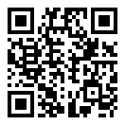
iPhone and iPad (App Store)
Scan or open download.burgtv.com/ios
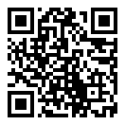
APK for Android phones
Scan or open download.burgtv.com/mobile.apk
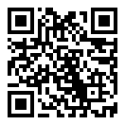
APK for Fire TV / Google TV / Android TV
Scan or open download.burgtv.com/tv.apk
Frequently asked questions
What you need to know before installing BurgTV. More questions? Write to [email protected].
Is BurgTV legal?
Does BurgTV provide channels or streams?
Which sources can I use?
Where do I download BurgTV and how do I update it?
download.burgtv.com: the app checks for new versions by itself and lets you know, and you can always download it again here. Other APK sites are not official channels.Is it safe to install an APK outside the Play Store?
download.burgtv.com/version.json. Play Protect may show a warning because the app does not come from the Play Store: this is normal.Is there a Premium version?
Can I get a refund?
How do I cancel my subscription?
Does BurgTV work without internet?
Does BurgTV collect my data?
Legal documents
Terms, privacy and usage rules, all in one place.